

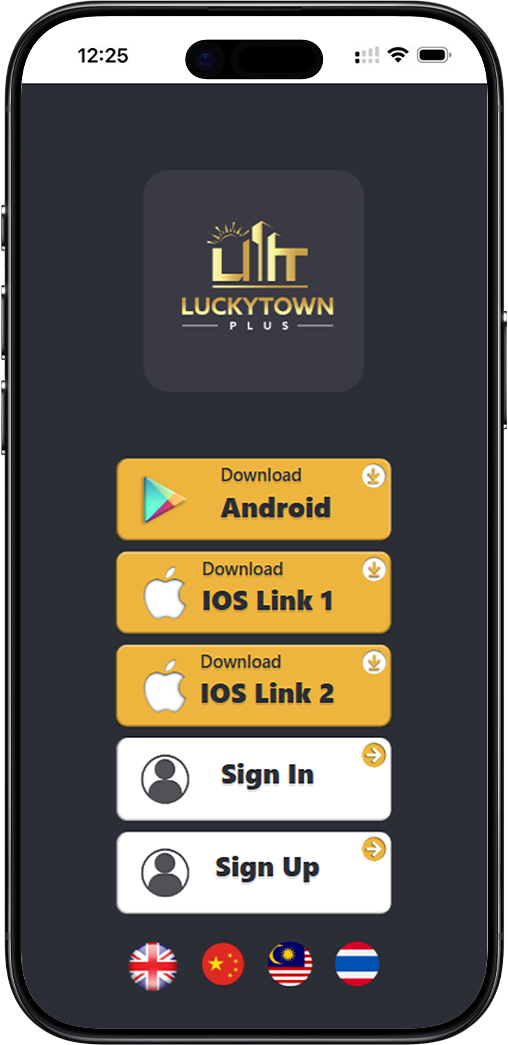
Welcome to the LUCKY TOWN PLUS download page. Whether you're using Android, iPhone, Windows, or macOS, we've got you covered. The LUCKY TOWN PLUS experience is designed to work seamlessly across all your devices. Choose your platform below and follow the simple steps to get started.
Android Download Guide
Step 1: Open Chrome Browser
On your Android device, launch the Google Chrome browser. This method works best with Chrome, which comes pre-installed on most Android phones. If you're using another browser, consider switching to Chrome for these steps.
Step 2: Visit the LUCKY TOWN PLUS App Page
In the address bar, type or paste the following URL: https://teamlky.xyz/download/appNew. This is the official LUCKY TOWN PLUS download page for mobile devices. Wait for the page to load completely.
Step 3: Access the Browser Menu
Tap the three-dot menu icon (⋮) located in the top-right corner of the Chrome browser. This opens a dropdown menu with various options for managing the current page.
Step 4: Select "Add to Home Screen"
From the menu, scroll down and tap "Add to Home screen." This option creates a shortcut icon on your Android home screen that opens LUCKY TOWN PLUS directly.
What If You See "Install App" Instead?
Sometimes Chrome may show "Install App" instead of "Add to Home screen." If this happens, try switching your phone to Airplane Mode or refreshing the page. After turning the internet back on, the "Add to Home screen" option usually appears. This workaround ensures you can still create the shortcut.
Step 5: Name Your Shortcut
A dialog box will appear asking you to name the shortcut. Enter "LUCKY TOWN PLUS" or any name you prefer, then tap "Add" or "Confirm." Chrome will create the icon and place it on your home screen.
Verification Step
Return to your Android home screen and look for the LUCKY TOWN PLUS icon. Tap it to ensure it opens the correct page. The icon will now function like a native app, giving you one-tap access to LUCKY TOWN PLUS.
iOS (iPhone / iPad) Download Guide
Step 1: Open Safari Browser
On your iPhone or iPad, launch the Safari browser. This feature only works in Safari – other browsers on iOS do not support adding websites to the home screen in the same way.
Step 2: Visit the LUCKY TOWN PLUS App Page
In the Safari address bar, navigate to https://teamlky.xyz/download/appNew. Ensure the page loads fully before proceeding to the next step.
Step 3: Tap the Share Button
At the bottom of the Safari screen, tap the Share button – this looks like a square with an upward arrow. This opens the iOS sharing menu with multiple options.
Step 4: Choose "Add to Home Screen"
Scroll through the sharing options and tap "Add to Home Screen." You may need to scroll down to find it among the various actions.
Step 5: Customize and Add
A preview screen will appear allowing you to customize the name. Enter "LUCKY TOWN PLUS" or your preferred name, then tap "Add" in the top-right corner. iOS will create the shortcut and place it on your home screen.
Finding Your New Icon
The LUCKY TOWN PLUS icon will appear on your home screen, possibly on the next page if your current screen is full. You can drag it to your preferred location. Tapping it opens LUCKY TOWN PLUS directly in Safari, just like a standalone app.
Windows Download Guide (Desktop Shortcuts)
Method 1: Drag and Drop
Open Chrome, Edge, or Firefox on your Windows computer. Navigate to LUCKY TOWN PLUS at https://teamlky.xyz/download/appNew. Look for the lock icon (🔒) in the address bar. Click and drag this icon to your desktop, then release. This creates a shortcut that opens LUCKY TOWN PLUS in your default browser.
Method 2: Chrome Shortcut Creation
In Google Chrome, visit LUCKY TOWN PLUS. Click the three-dot menu (⋮) in the top-right corner. Navigate to "More Tools" then select "Create Shortcut..." Name it "LUCKY TOWN PLUS" and optionally check "Open as window" for a more app-like experience. Click "Create," and a shortcut will appear on your desktop.
"Open as Window" Explained
When you check "Open as window," the LUCKY TOWN PLUS site opens in its own dedicated window without the usual browser tabs and address bar. This provides a more immersive, app-like experience on your Windows desktop.
Method 3: Microsoft Edge App Installation
In Microsoft Edge, visit LUCKY TOWN PLUS. Click the three-dot menu (⋮) in the top-right corner. Select "Apps" then click "Install this site as an app." Name it "LUCKY TOWN PLUS" and confirm. The site will install and behave like a native Windows app, and you can pin it to your desktop, taskbar, or Start Menu.
Method 4: Manual Shortcut Creation
Right-click on an empty area of your desktop. Select "New" then "Shortcut." In the location field, paste the URL https://teamlky.xyz/download/appNew. Click "Next," name the shortcut "LUCKY TOWN PLUS," and click "Finish." A standard internet shortcut will appear on your desktop.
macOS Download Guide (Desktop Shortcuts)
Safari Method: Drag and Drop
Open Safari on your Mac and navigate to LUCKY TOWN PLUS at https://teamlky.xyz/download/appNew. Locate the URL or lock icon in the address bar. Click and drag this icon to your desktop. This creates a .webloc file – double-clicking it opens LUCKY TOWN PLUS in Safari.
Chrome Method: Create Shortcut
In Google Chrome on macOS, visit LUCKY TOWN PLUS. Click the three-dot menu (⋮), go to "More Tools," and select "Create Shortcut..." Name it "LUCKY TOWN PLUS" and choose whether to open it as a window. Click "Create," and the shortcut will appear on your desktop.
Customizing Your macOS Icon (Optional)
If you want a custom icon for your LUCKY TOWN PLUS shortcut, right-click the shortcut and select "Get Info." Find or create an image you'd like to use, copy it (Command+C), then click the small icon preview in the Info window and paste (Command+V). Your custom icon will now appear for the shortcut.
Frequently Asked Questions About LUCKY TOWN PLUS Download
Is This the Official LUCKY TOWN PLUS App?
The shortcuts created using these methods point to the official LUCKY TOWN PLUS web application. While not a traditional app store download, this provides the same functionality with the convenience of one-tap access from your home screen or desktop.
Do I Need to Download Anything from an App Store?
LUCKY TOWN PLUS is currently accessed via web browser with home screen shortcuts. This approach offers several advantages: no app store approvals, instant updates, and compatibility across all devices without installing large files.
Will I Receive Notifications?
Browser-based apps can support notifications if you grant permission when prompted. When you first access LUCKY TOWN PLUS via your shortcut, your browser may ask if you want to allow notifications – click "Allow" to stay updated.
Is My Data Secure on These Shortcuts?
Yes. The shortcuts simply open the secure LUCKY TOWN PLUS website. All data transmission uses the same encryption as when you visit via browser. The LUCKY TOWN PLUS commitment to security applies regardless of how you access the platform.
Clearing Cache and Data
If you experience issues with your LUCKY TOWN PLUS shortcut, try clearing your browser's cache and cookies. This refreshes the stored data and often resolves loading or login problems.
Troubleshooting Common Download Issues
Android: "Add to Home Screen" Missing
If you don't see "Add to Home Screen" in your Chrome menu, ensure Chrome is updated to the latest version. You can also try the Airplane Mode trick mentioned earlier or restart your device and try again.
iOS: Share Button Doesn't Show "Add to Home Screen"
Make sure you're using Safari – this feature isn't available in Chrome or other browsers on iOS. Also ensure the page has fully loaded before tapping the share button.
Windows: Shortcut Opens Wrong Page
If your shortcut opens a different page, right-click the shortcut, select "Properties," and verify the URL in the "Target" or "URL" field. Correct it to https://teamlky.xyz/download/appNew if needed.
macOS: .webloc File Doesn't Open
If double-clicking the .webloc file doesn't open Safari, right-click the file, select "Get Info," and ensure it's set to open with Safari. You can also drag it onto the Safari icon in your dock.
LUCKY TOWN PLUS Download Summary
Whether you're on Android, iPhone, Windows, or macOS, accessing LUCKY TOWN PLUS is just a few steps away. The LUCKY TOWN PLUS platform is designed to work seamlessly across all devices, giving you the flexibility to connect wherever you are. Choose your device above and follow the simple guide to create your shortcut today.
Get Instant Access to LUCKY TOWN PLUS
Ready to enjoy LUCKY TOWN PLUS on your favorite device? Follow our download guides above to create your home screen or desktop shortcut in minutes. It's free, fast, and secure.
Download LUCKY TOWN PLUS Now